PulseCheck - Smart Devices and AI
What Is PulseCheck?
- Smart watches and rings send your heart rate, steps, and sleep data to AI models for summaries and alerts
- In PulseCheck, the Photon 2 plays the smart watch
- Press the button to send 10 minutes of real Fitbit heart rate and step data to Google Gemini
- Gemini decides what the wearer is doing and whether anything looks wrong
- The Photon 2 shows the answer on an RGB LED
- Two parts
- Part 1: five mystery datasets with heart rate and steps
- Part 2: three harder datasets with four more signals: calories, intensity, METs, and sleep
- For each dataset, you write down what Gemini says. Your instructor goes over the answers at the end of each part
- Handout: PulseCheck Student Handout
How It Works
Photon 2                      Particle Cloud                  Gemini
--------                      --------------                  ------
button pressed
Particle.publish(event)  -->  webhook adds the prompt   -->   reads the data
                              and the API key                 returns JSON
onWebhookReply()         <--  hook-response event       <--   {"state", "alert", "msg"}
set the RGB LED
- The Photon 2 never talks to Gemini directly. It just publishes an event
- The webhook does the AI call, then sends Gemini’s answer back as a
hook-responseevent - A reply takes about 1 second
Why a Webhook?
- The webhook holds your Gemini API key, so it never goes on the device
- Important! Keep your API key private: never put it in your code, a commit, a screenshot, or a chat
- Anyone with your key can use up your quota
- If it leaks, delete it and make a new one
- Review
- APIs and Webhooks
- Particle + Gemini Integration for creating your Gemini API key
Wiring
| Part | Pin | Resistor |
|---|---|---|
| RGB LED red | SCL | 330 Ohm |
| RGB LED green | MISO (MI on the board) | 330 Ohm |
| RGB LED blue | MOSI (MO on the board) | 330 Ohm |
| RGB LED common (long leg) | GND | none |
| Button | D5 | 10k Ohm |
- Same wiring as the RGB LED and button exercise
- Note: this is for a common cathode RGB LED. If yours is common anode, the long leg goes to 3V3 instead, and you set
COMMON_ANODEtotrueat the top ofpulsecheck_setup.h- If the LED is white when it should be off, you have the other kind
- The button reads
LOWwhen pressed
The Data
- Real Fitbit data from a public dataset of 30 people
- Furberg, R., Brinton, J., Keating, M., & Ortiz, A. (2016). Crowd-sourced Fitbit datasets 03.12.2016-05.12.2016. Zenodo. doi.org/10.5281/zenodo.53894 (CC BY 4.0)
- One heart rate and one step reading per minute, for 10 minutes
- Sent as plain text
hr_bpm=[72,70,71,72,75,74,75,72,73,75] steps_per_min=[0,0,0,0,0,0,0,0,0,0] interval=1min
- Note: no double quotes in the data, or it breaks the webhook’s JSON
Part 1: Five Mystery Datasets
- Each button press sends the next dataset: A, B, C, D, E, then back to A
- Each one is 10 minutes of a real person: resting, walking, a workout, sleep, or something concerning
- We don’t tell you which is which
| Dataset | Heart rate (bpm) | Steps per minute |
|---|---|---|
| A | 96 to 104 | 88 to 104 |
| B | 42 to 43 | 0 |
| C | 63 to 70, then 138 to 144 for the last 4 minutes | 0 |
| D | 70 to 75 | 0 |
| E | 153 to 160 | 166 to 174 |
- Only the numbers are sent to Gemini, never the letter
- The serial monitor prints the letter next to Gemini’s answer
Sending dataset A
Dataset A | Gemini: state=walking alert=0 msg="Steady walk, avg 100 bpm"
- Write Gemini’s answer for each dataset on the handout. Your instructor goes over the answers at the end of each part
- Tip: before you press the button, look at the table and make your own guess. The full numbers are in
data/fitbit_windows.csv
Gemini’s Answer
- The webhook tells Gemini exactly what to send back
{"state": "workout", "alert": false, "msg": "Great pace, avg 156 bpm!"}
state: one ofsleep,resting,walking,workoutalert: true when something looks concerningmsg: a short note for a small watch screen- The Photon 2 still checks every reply. Anything unexpected turns the LED magenta
- Never trust the model’s output blindly
- Review
- JSON Overview
- Retrieving Data from APIs using Mustache Templates: the webhook’s
responseTemplatepulls Gemini’s answer out of its reply the same way
Starter Code
- Download the starter code directly
- Unzip it and open the
pulsecheck_startfolder in Particle Workbenchsrc/pulsecheck.cpp: your codesrc/pulsecheck_setup.h: the plumbingsrc/fitbit_data.h: the Fitbit numbers, compiled into the firmwaredata/fitbit_windows.csv: the same numbers as a spreadsheet, for you to look atpulsecheck_webhook_body_starter.json: the JSON body for your webhook, with two blanksREADME.md: step-by-step setup
Writing Your Prompt
- The prompt is the instructions Gemini reads before it sees the data
- It goes in the
TODO PROMPTblank ofpulsecheck_webhook_body_starter.json - Review: Prompt Engineering for IoT
- It goes in the
- Gemini only knows what you tell it. A good prompt answers five questions
| Part | Question it answers | Example |
|---|---|---|
| Role | Who is Gemini in this job? | You are the analysis engine for a fitness tracker |
| Input | What is the data, and in what units? | Two lists, one value per minute: heart rate in beats per minute and steps per minute |
| Choices | What answers are allowed? | Classify the activity as exactly one of: sleep, resting, walking, workout |
| Rules | How should it decide, and when is it an alert? | Set alert to true only if the heart rate pattern is concerning for that activity |
| Output | What should the reply look like? | Write msg as a friendly note of at most 40 characters |
- Compare
Tell me what this person is doing.
You are the analysis engine for a fitness tracker. You receive heart rate in beats per minute and steps per minute, one value per minute. Classify the activity as exactly one of: sleep, resting, walking, workout. …
- The first one leaves Gemini guessing: what do the numbers mean? what words can it answer with?
- Tips
- Be specific: say “beats per minute”, not “the numbers”
- Use the same words as your code: if the firmware checks for
"resting", the prompt must sayresting - Don’t put double quotes inside the prompt, or it breaks the webhook’s JSON
- Prompts are written like code: test, find the mistake, change one thing, test again
- If Gemini gets a dataset wrong, ask what it didn’t know, and add one sentence that tells it
- Change one sentence at a time, so you know what fixed it
Creating the Webhook
- Same steps as Particle + Gemini Integration
- Open
pulsecheck_webhook_body_starter.json. This is the JSON the webhook sends to Gemini
{
  "systemInstruction": {
    "parts": [
      {
        "text": "TODO PROMPT: write the prompt. Tell Gemini what data it receives, which states to choose from, when to set alert, and how to write msg (at most 40 characters)."
      }
    ]
  },
  "contents": [
    {
      "role": "user",
      "parts": [
        { "text": "{{{PARTICLE_EVENT_VALUE}}}" }
      ]
    }
  ],
  "generationConfig": {
    "temperature": 0.2,
    "thinkingConfig": { "thinkingLevel": "minimal" },
    "responseMimeType": "application/json",
    "responseSchema": {
      "type": "OBJECT",
      "properties": {
        "state": { "type": "STRING", "enum": ["TODO STATES: list the four states the firmware understands"] },
        "alert": { "type": "BOOLEAN" },
        "msg":   { "type": "STRING" }
      },
      "required": ["state", "alert", "msg"]
    }
  }
}
- Fill in the two blanks
TODO PROMPT: your prompt, on one line, with no double quotes inside itTODO STATES:"sleep", "resting", "walking", "workout"
- Leave the rest as it is
systemInstruction: the prompt Gemini reads before the datacontents: the data from your Photon 2responseSchema: forces Gemini to answer with exactlystate,alert, andmsg
- In the Particle console, go to Cloud services > Integrations > Add new integration and choose Custom Webhook
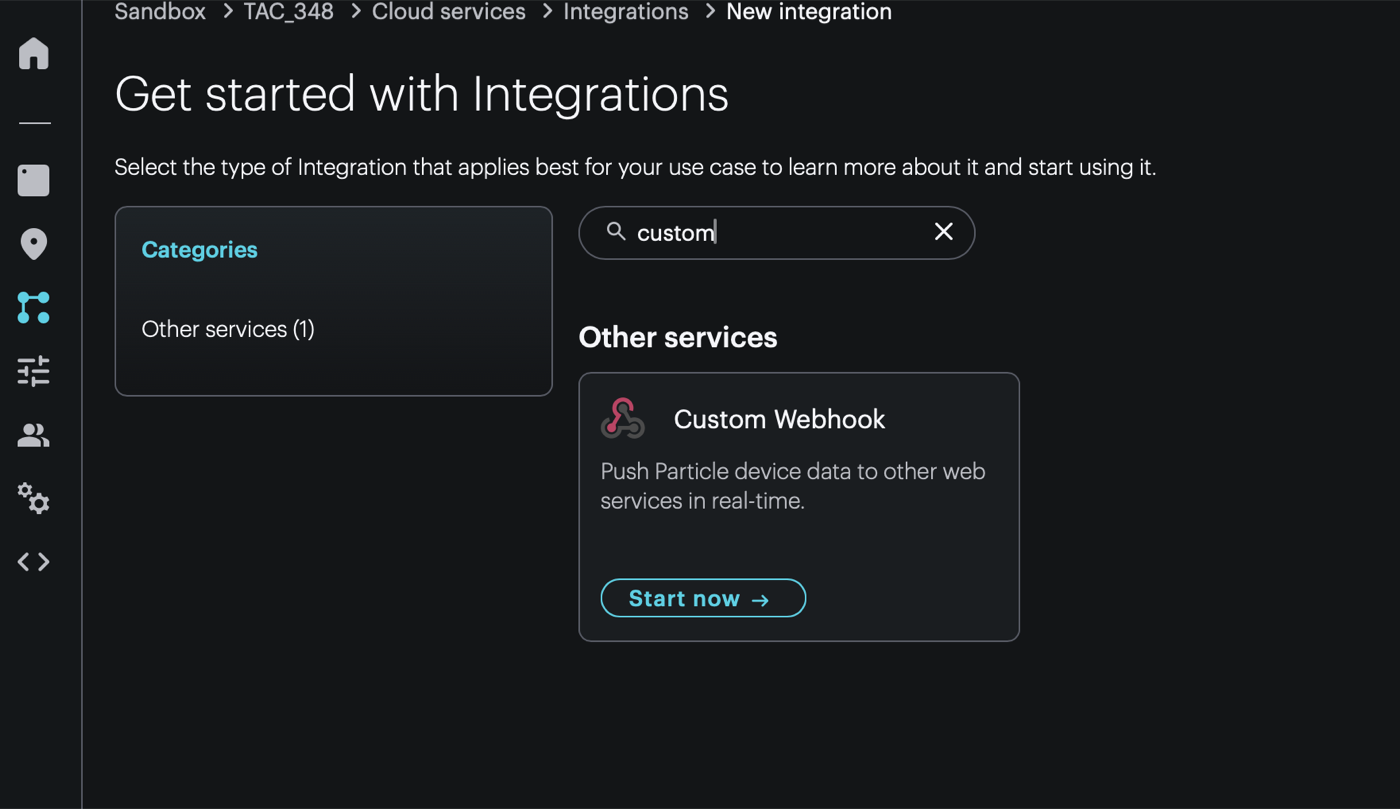
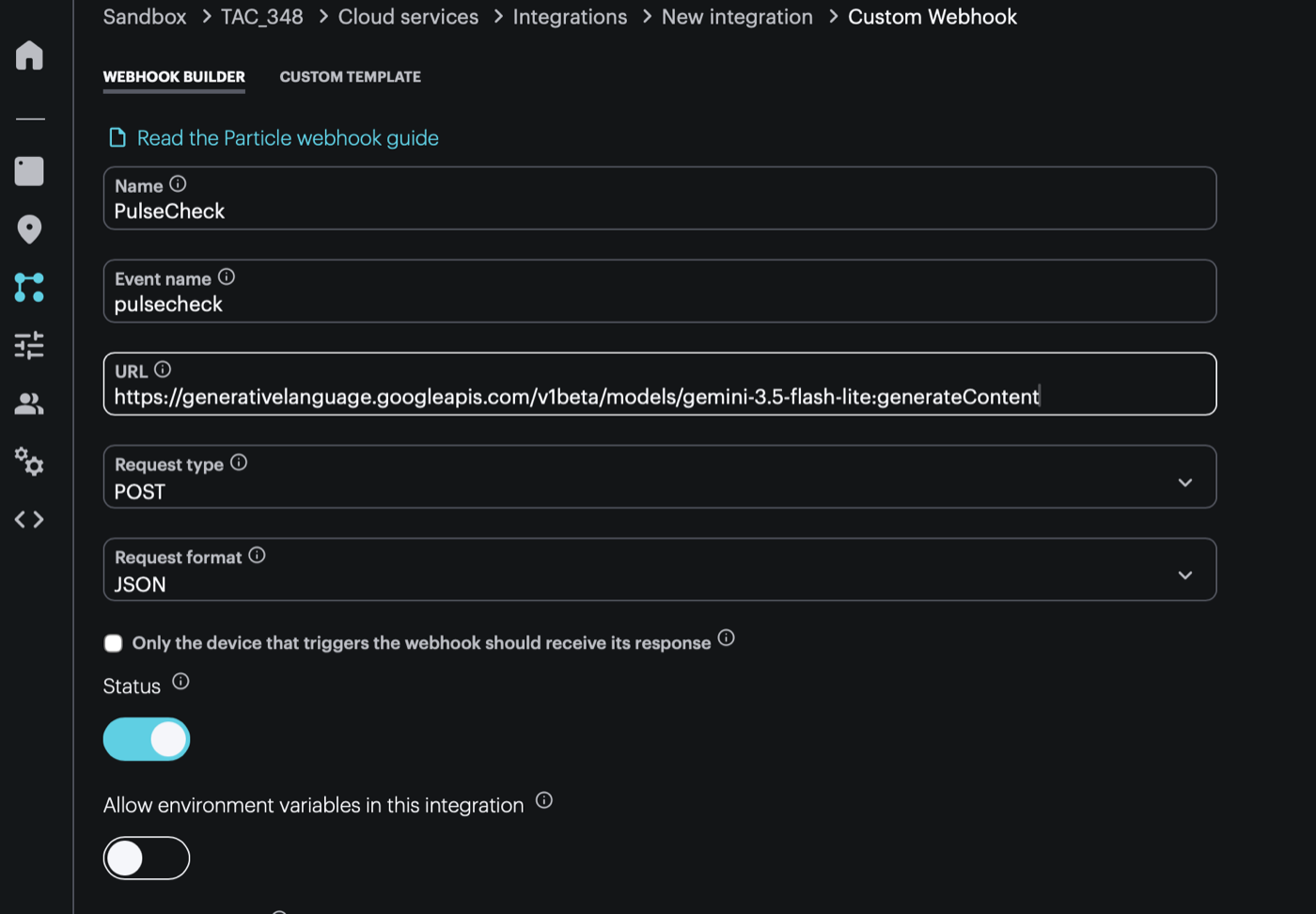
- Stay on the Webhook Builder tab and use the following settings
- Name:
PulseCheck - Event name:
pulsecheck - URL:
https://generativelanguage.googleapis.com/v1beta/models/gemini-3.5-flash-lite:generateContent - Request type:
POST - Request format:
JSON - Leave “Only the device that triggers the webhook should receive its response” unchecked
- Name:
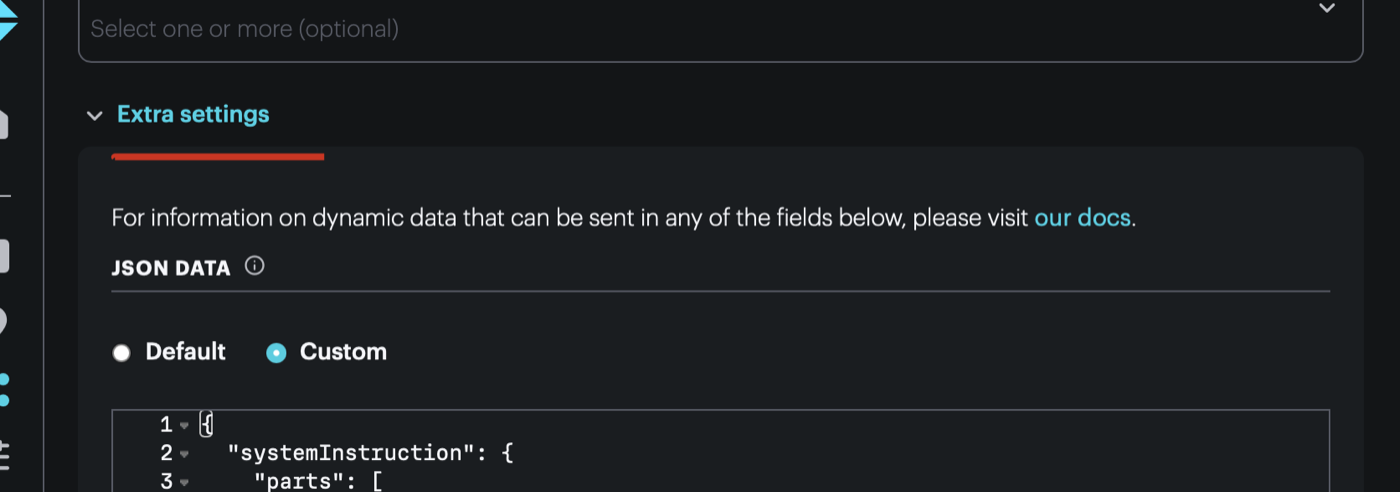
- Go to Extra settings
- Under JSON data, choose Custom, delete what is there, and paste your whole body file
- Under HTTP headers, add
- Key:
x-goog-api-key - Value: your Gemini API key
- Key:
- Under Response template, add
{{#candidates}}{{#content}}{{#parts}}{{{text}}}{{/parts}}{{/content}}{{/candidates}}
- Click Enable integration
- Note: in the body,
{{{PARTICLE_EVENT_VALUE}}}is where Particle puts the data your Photon 2 published - Note: the response template pulls just Gemini’s answer out of its reply, so the Photon 2 receives only
{"state", "alert", "msg"} - To change your prompt later, open the webhook, click Edit, and change it under Extra settings > JSON data
Webhook Troubleshooting
- To see what went wrong, open your webhook in the Particle console and look at its most recent error
| What you see | Cause and fix |
|---|---|
| LED turns white, then magenta after 20 seconds | The webhook did not run. Check that it is enabled and its event name is pulsecheck |
| LED turns magenta right away | The request was rejected. Read the error on the webhook’s page |
Header name must be a valid HTTP token |
There is an HTTP header row with an empty name. The name is x-goog-api-key, the value is your key, and there are no blank rows |
Error 400 or API_KEY_INVALID |
The API key is wrong or missing |
| Error 400 “Unknown name” | Something other than the body file is in JSON data. Only the body goes there |
| Error 404 | The model in the URL was retired. Use the current Flash-Lite model |
| Error 429 | You used up your free quota. Wait a minute, or change the model in the URL for the rest of the day |
- Note: after you change the webhook, press the button again to test it. You don’t need to flash again
Part 1: Your Job
pulsecheck_setup.hdoes the plumbing: the button, publishing, reading the reply, timeouts- You don’t need to change it for Part 1
- Write your prompt using the five parts above, and create the webhook
- In
pulsecheck.cpp:- TODO 1: show Gemini’s answer on the RGB LED in
onGeminiReply()withchangeLedColor(r, g, b) - TODO 2 (optional): write your own
safetyRule()
- TODO 1: show Gemini’s answer on the RGB LED in
- Run datasets A to E and fill in Part 1 of the handout
When Gemini Gets It Wrong
- With our first prompt, Gemini missed the most important window: heart rate jumps while sitting still
- Gemini: “Great workout!” and no alert
- It looked at heart rate and ignored the steps
- It also reported the wrong average heart rate
- Language models are not reliable at math over a long list of numbers
Fixing the Prompt
- Adding one sentence to the prompt fixed the label
Decide the state from the steps first: if steps stay near zero, the state is resting or sleep, never walking or workout, even when heart rate is high.
- A better prompt makes the right answer more likely
- But it is not a guarantee
Safety Rule
- The guarantee comes from plain code on the Photon 2:
safetyRule() - Alert when both are true
- the heart rate of the last quarter of the window is 30+ bpm above the first half
- steps stay under 10 per minute
- The alert turns on even if Gemini says no, or the webhook fails
defaultSafetyRule()inpulsecheck_setup.his a ready-made version- Let the model interpret the data. Keep safety checks in code you can test
Part 2: More Signals
- Heart rate and steps alone can’t tell everything apart
- Lying awake and sleeping look the same
- Cycling or rowing has a high heart rate but almost no steps, so it looks like a spike at rest
- Real watches send more. Part 2 adds four signals from the same Fitbit dataset, for six in total
| Signal | What it means | Example |
|---|---|---|
calories_per_min |
Calories burned each minute. About 1 at rest, 10 or more in hard exercise | [12.4,12.4,10.5,...] |
intensity |
Fitbit’s activity level: 0 sedentary, 1 light, 2 moderate, 3 very active | [3,3,3,...] |
mets |
Energy use compared to rest. 1.0 = sitting still, 3+ = exercise, even with no steps | [9.0,9.0,7.6,...] |
sleep |
Fitbit’s sleep tracking for each minute: awake, asleep, or restless | [asleep,asleep,...] |
- Note: Fitbit works out calories, intensity, and METs from its motion sensor, so they tend to move together. Sleep comes from its sleep tracking
- Three new datasets: F, G, H
- All three have zero steps the whole time
- All three are real, unedited Fitbit data
| Dataset | Heart rate (bpm) | Steps | Calories per minute | Intensity | METs | Sleep |
|---|---|---|---|---|---|---|
| F | 60 to 63, then 96 to 97 for the last 3 minutes | 0 | 0.9 to 1.1 | 0 | 1.0 to 1.2 | asleep |
| G | 132 to 191 | 0 | 10.5 to 19.3 | 3 | 7.6 to 14.0 | awake |
| H | 65 to 74, then 90 to 100 for the last 4 minutes | 0 | 1.0 to 1.3 | 0 | 1.0 to 1.2 | awake |
hr_bpm=[62,62,...] steps_per_min=[0,0,...] calories_per_min=[0.9,0.9,...] intensity=[0,0,...] mets=[1.0,1.0,...] sleep=[asleep,asleep,...] interval=1min
Part 2: Your Job
- Set
PARTto2at the top ofpulsecheck_setup.hand flash - Update your prompt so Gemini knows what the four new signals mean
- Without it, Gemini has to guess what the new numbers are
- The safety rule is ready-made:
defaultSafetyRule()switches to METs in Part 2- Part 1: still = steps under 10 per minute
- Part 2: still = METs at 1.5 or below
- Steps miss exercise like cycling. METs do not
- Run datasets F to H and fill in Part 2 of the handout
Free Tier Limits
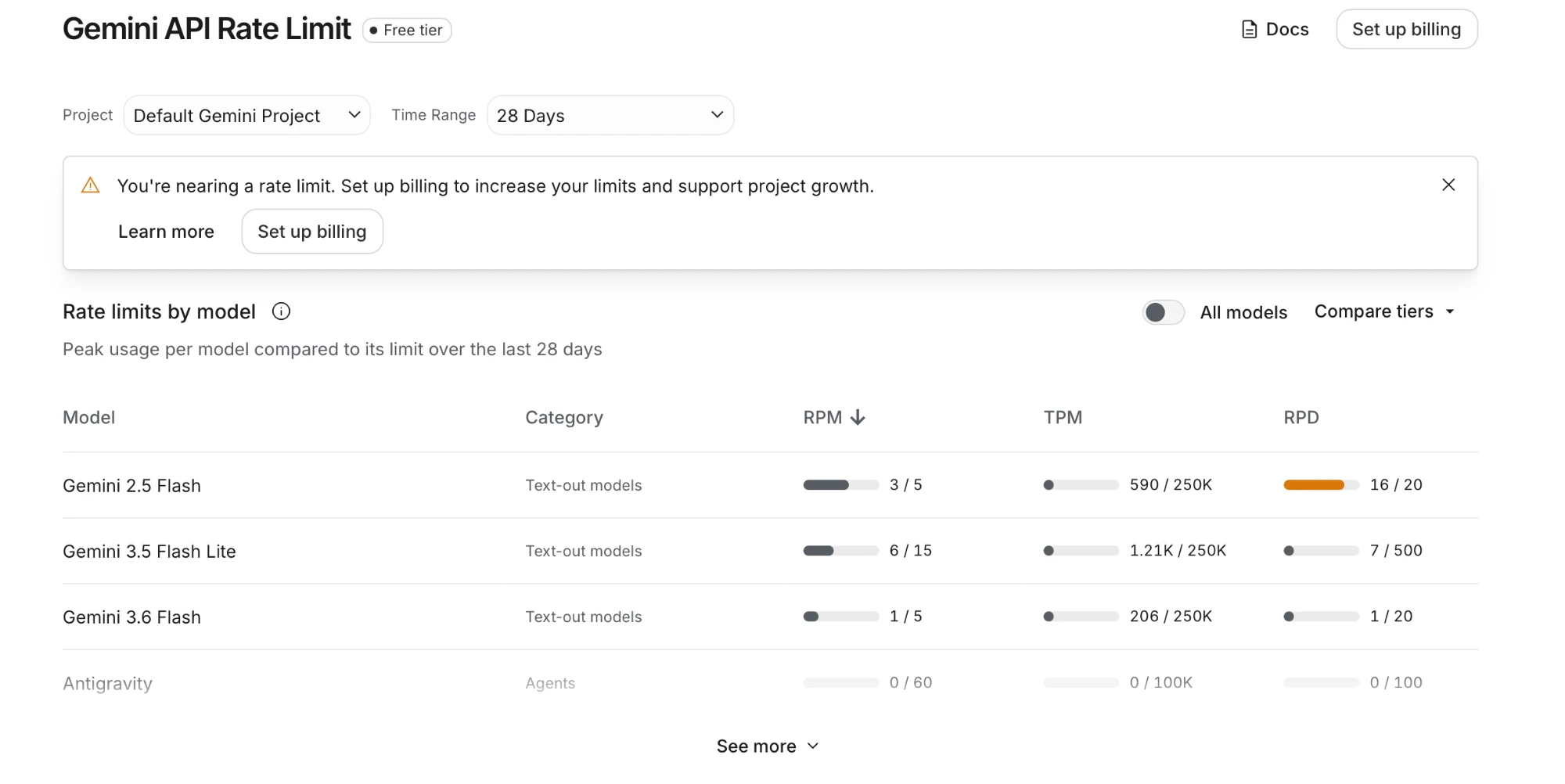
| Model | Requests per minute | Requests per day |
|---|---|---|
gemini-3.5-flash-lite |
15 | 500 |
gemini-3.6-flash |
5 | 20 |
gemini-2.5-flash |
5 | 20 |
- Use
gemini-3.5-flash-lite: one press a minute is about 100 requests per class - Limits are per Google project, so use a key from your own Google account
- The daily limit resets at midnight Pacific time
- Ran out (error 429)? Switch the webhook to another model. Each model has its own quota
Going Further
- Even more signals: real rings also track heart rate variability, skin temperature, blood oxygen, and breathing
- In our tests with these, Gemini still missed some spikes at rest. The safety rule still caught them
- More Fitbit data: test more windows from the same dataset
- Real sensors: replace the Fitbit data with readings from your smart watch build
- Note: PulseCheck is not a medical device. Do not send real personal health data to the free tier